Get to know the new FindaGrave.com

This week we have further advice from Ted Bainbridge about finding cemetery records using FindaGrave.com. In Part 1 of this article, Ted deals with searching for a person's grave - in Part 2, to follow, he explains how to find a cemetery. This site provides free searches but following up suggested records may require paid access to Ancestry.com. Remember access to Ancestry.com is free for GSV members at the GSV's Research Centre. [Ed.].
***
Getting acquainted with the revised version of FindaGrave.com
Ted Bainbridge PhD
FindaGrave - https://www.findagrave.com/ - is a web site that collects individuals’ cemetery and other information, whether a grave marker is present or not. The site’s database includes over 165 million people’s memorials, and adds about 1 ½ million per month. It contains information from almost half a million cemeteries around the world. This free site can be searched in several ways, and its information is easy to download onto a home computer. The site is menu-driven and intuitively easy to use. Registration, which is optional and free, gives the visitor access to features that are not otherwise available. Everybody should explore the tutorials.
Think of the home page as being organized into four areas:
- the main menu, near the top of the page and filling its entire width
- the search panel for individuals’ graves, which dominates the background photograph
- the link to findagrave tutorials, a blue oval button near the bottom right of the page
- other less-frequently used items, occupying the rest of the screen below the background image
Hunting A Person
By far, the most common use of findagrave is hunting individuals. The simplest search is done as follows. Enter a first name in the box provided near the center of the background photo. (This is optional, but if you don’t do it you will get an enormous hit list for all but the most unusual surnames.) I recommend leaving the box for middle name blank, because grave markers usually don’t show middle names. Put a surname in the appropriate box. (This is required.) There is no option for “similar spelling” or “similar sound”, so do separate searches for each variant spelling of the first name and surname.) Click the search button. A hit list appears, showing records that match your request and headed with the count of how many records are on the list. Search the hit list for the person you want, then click that person’s name. You will see that person’s information page. (If a picture of the grave stone exists, look at it in detail. Sometimes this will show that the typed information on the page contains an error.) To save the information on that page, you can command a “print” from your computer’s operating system. Alternatively, you can scroll to the top of the page, click “save to”, click “copy to clipboard”, open the program you will use to save the information, paste the clipboard’s content into that program, and save within that program. To save the source citation scroll to the bottom of the person’s page, click “source citation”, copy the text of the cite, paste that text wherever you want it to be, and save that destination’s content within the appropriate program. The person’s page might include links to findagrave pages for relatives. Click those links to see their information.
Typing only the first and last name probably will produce a hit list that is too long to read. If that happens, search for that name again but narrow the search by using the pull-down menus next to the “year born” and “year died” boxes below the name boxes you used. In addition to or instead of those restrictions, you can use the location box next to those date boxes. As you type a place into that box, an auto-fill list appears. When you see the appropriate place, select it from the list. (Typing the name and clicking the “search” button instead won’t give good results.) If you use all three restrictions and the new search doesn’t find the person you want, remove one of those restrictions and search again. If that search fails, replace that restriction and remove another one. If you fail again, repeat. If all those searches fail, use only one restriction at a time and do all three restricted searches. Repeat this process until you are successful. (But remember that not everyone is in findagrave, so all your searches might fail. In that case, try again later, remembering that findagrave adds about 1 ½ million records per month.)
Next to the “search” button you can see “more search options”. Clicking that makes the following available:
“Famous” separates a famous person from others who have the same name. (Asking for Marilyn Monroe creates a hit list of 29 people. Going to the top of the list, clicking “refine search”, pulling down “more search options”, clicking “famous”, and then clicking “search” shows only the movie star we all know.
“Sponsored” shows only pages that have no advertisements because somebody paid to remove them.
“Nickname” must be checked if you ask for somebody by nickname instead of given name.
“Maiden name” must be checked if you ask for somebody by maiden name instead of married name.
“Partial last name search” lets you search by putting only the first letters of a first or last name in the appropriate boxes. (Requesting “wana” shows Wana, Wanamaker, Wanabaker, and other surnames that begin with those four letters; but it doesn’t list Wannamaker.
“No grave photo” gives only people who have no grave photo on their information page.
“Grave photo” gives only people who have a grave photo on their information page.
“Flowers” gives only people who have virtual flowers attached to their page. (Asking for Clarence Bainbridge without this option clicked gets five names, but clicking this option reduces the list to two.)
***
(next) Part 2 - Finding a cemetery.

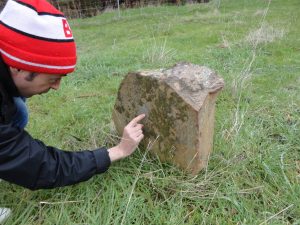 A remnant of a Victorian burial at Cemetery Reef Gull Cemetery, Chewton, Vic. (Photo: W Barlow, 2017)

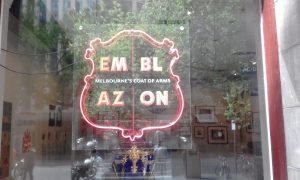 'Emblazon' Exhibition. City Gallery window at Melbourne Town Hall, 8 Nov 2018
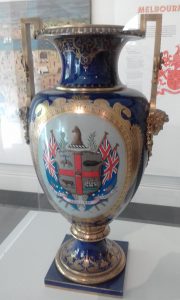 Sevres vase 1880. City of Melbourne Art and Heritage Collection (photo: W. Barlow, 2018)
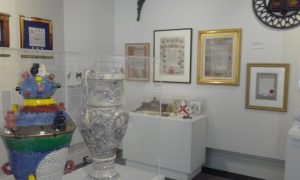 Gallery with 2018 vases by Brennan (L) and Wedd (R). (Photo: W. Barlow, 2018)
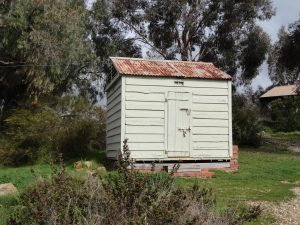 Old portable police lockup, Chewton, Victoria, 1860s. (Photo. W. Barlow 2017)
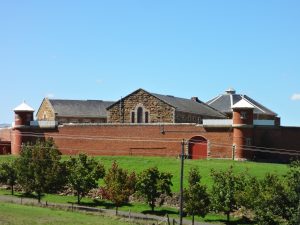 Castlemaine prison, Victoria, built 1857-61 on the Pentonville Model (Photo. W. Barlow 2017)
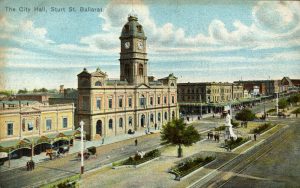 City Hall, Ballarat c.1907. (Courtesy SLV Pictures H96.200/1381)
 The winner of the AncestryDNA kit was won by Rod Van Cooten, and GSV thanks all those who participated.